
Part 6: Accessing your Endnote Library from your home PC or laptop
1. at work
From your existing (work) Endnote installation, open the Library you want to share, then go to Tools and Sync.

On the next screen choose Sign Up, then complete the form and agree to the terms and conditions that follow. You are creating a username (your e-mail address) and a password.
2. From your home PC or your laptop:
From home log-in from: https://www.myendnoteweb.com/EndNoteWeb.html?func=slogout&locale=en_us&
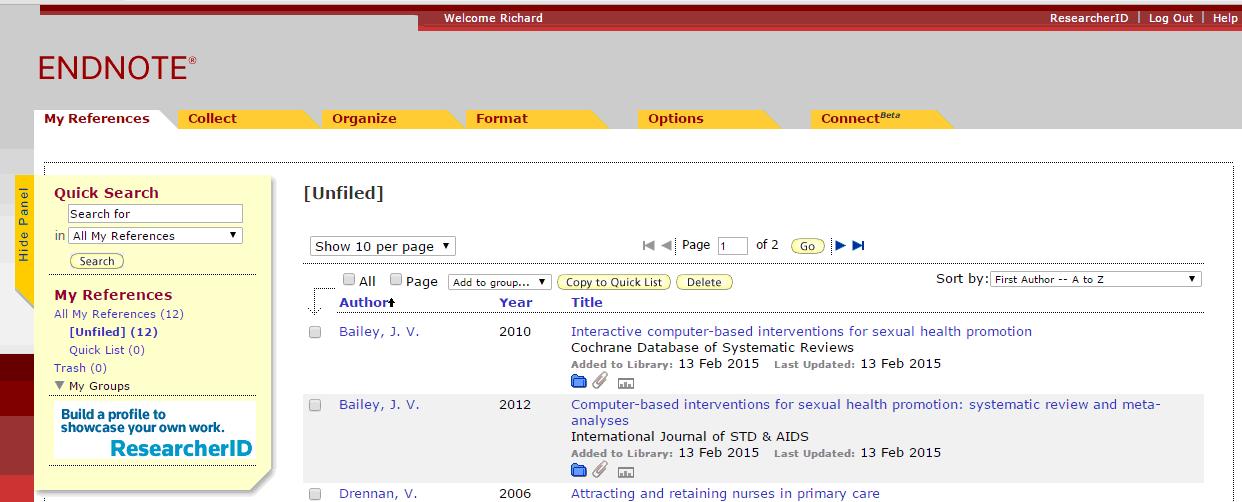
You should now be able to view your references!
3. Installing CWYW in word
To be able to cite your references in a word document, you will need to install Cite While You Write (CWYW).
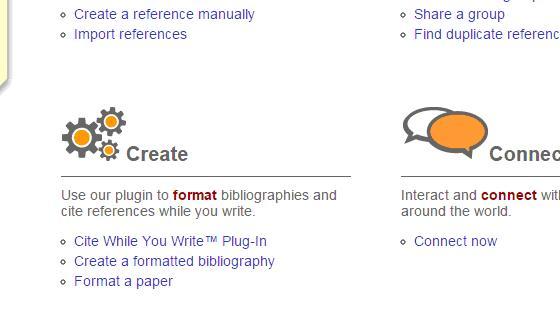
Click on show getting started guide (top right of screen). Under create, click on Cite While You Write plug-in.
Choose Download Windows or Download Macintosh as appropriate.
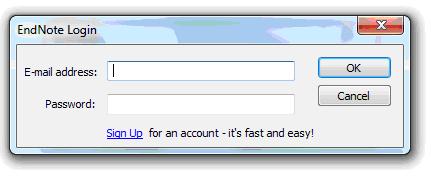
An Endnote tab should now appear in word. When you click on it you will be asked to log-in:
Once you have logged in, use Insert Citation to search for the reference you want
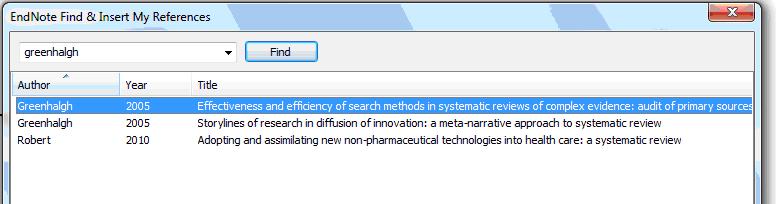
Highlight the reference you want to use, then click on insert
This shows references in Harvard style.

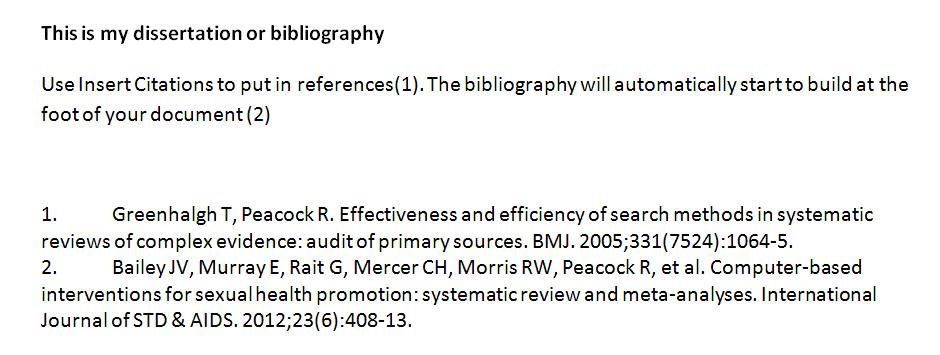
But you can choose another style and reformat if you wish – for example to Vancouver.