

Part 1: Getting started

The easiest, if most time consuming, way to do this is by writing them yourself. To do this press “new reference” button on your library

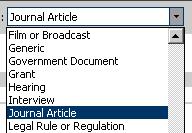
From the drop down menu you can select what type of item you are referencing, such as book, journal article or Web Page.
You can then fill in the rest of the fields below.
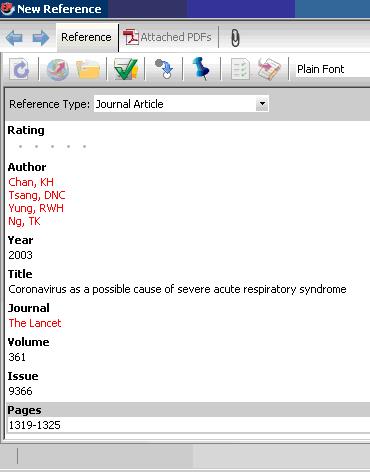 ?
?
Adding a corporate author
When entering corporate authors, put a comma after the name:
Whittington Health NHS Trust,
Camden and Islington NHS Foundation Trust,
This ensures that the entire name is treated as a first name, so no name manipulation will be applied.
If your corporate author name includes a comma in the name itself, use two commas in place of the first comma:
St George's,, University of London
EndNote treats this as a last name followed by a blank first name. Then, everything after the (blank) first name is appended, including a second comma in the name. The formatted result is the corporate name with the commas in place.
Once you have entered your reference press save and it will be added to your library
Another way to add references to Endnote is to import them from a database (see Part 2).