

Part 5: Inserting citations in your work
Endnote makes inserting citations into your work far quicker and easier than doing it manually. If you have Microsoft Word installing Endnote will also install the Cite While You Write (CWYW) toolbar though you may have to make it visible by selecting “view”, “toolbars” and then “Endnote x7”.

Open EndNote, and open a library you have created then open Microsoft Word and write as normal. When you want to insert a citation press the insert citation button on the Endnote toolbar

This will bring up a search box. Search for the reference you wish to insert. You can search by the authors name or a keyword to find the right citation. Select the citation you wish to import and press insert.
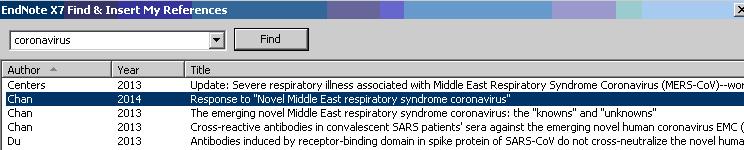
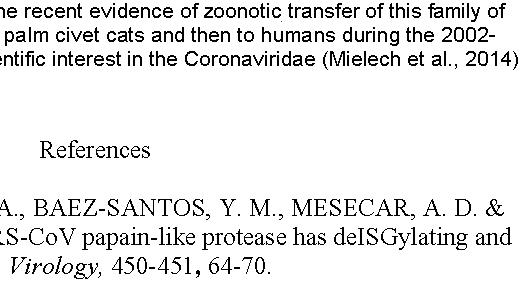
The citation is inserted in the text and the full reference appears at the bottom of your text. For example:
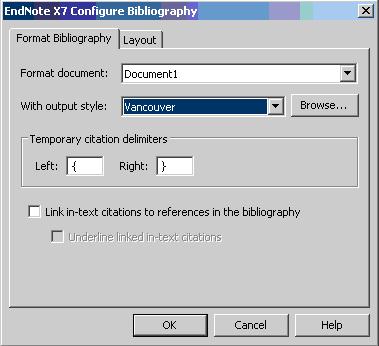
Endnote also allows you to quickly and easily change the style of your references. To do so select the “Format Bibliography” icon on your toolbar.

This will bring options for altering the way your bibliography is formatted. For example you can change from Harvard Reference style to Vancouver or using the layout tab change the font and size of your bibliography.
 ?
?
Once you have made your changes pressing “OK” will alter the inserted citations automatically throughout your text.